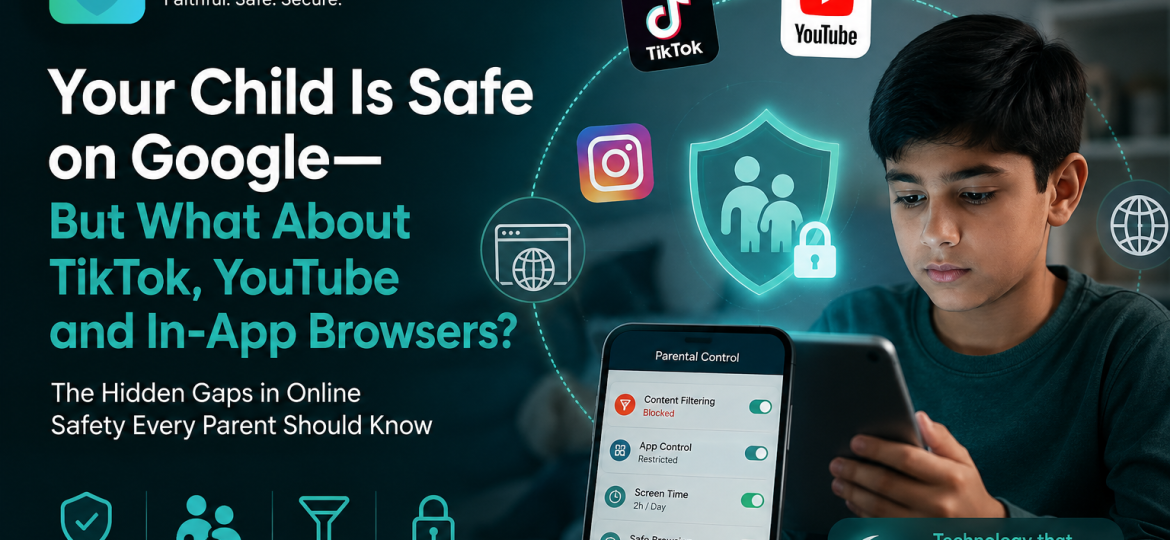
You turn on Google SafeSearch. You set up Family Link. Explicit websites are blocked. Your child’s Chrome account is supervised.
It feels like the internet is finally under control.
Then your child opens YouTube.
A few minutes later, they move to TikTok. Someone sends them a link in a messaging app. The link opens inside that app rather than Chrome. Later, another recommendation appears because they watched one similar video.
Suddenly, the question is no longer:
“Is Google SafeSearch working?”
The better question is:
“How many different ways can content reach my child?”
This is one of the biggest gaps in modern parental-control strategies.
Google SafeSearch can help filter explicit material from Google Search results, and Family Link can apply additional restrictions to supervised accounts. But Google itself explains that SafeSearch protections depend on factors such as the child being signed into the supervised account, and Chrome controls do not automatically become universal protection across every browser, app and digital environment.
For parents—and particularly Muslim parents trying to create a safer digital environment at home—the challenge is no longer simply blocking a list of bad websites.
Children increasingly experience the internet inside apps, feeds, recommendations, videos and embedded browsers.
That requires a different safety strategy.
Google SafeSearch Is Useful—But It Protects Google Search
Let’s start by giving Google SafeSearch credit for what it actually does.
When a child uses a Google Account managed through Family Link, SafeSearch filtering is turned on and locked by default. Parents can manage the setting through Family Link. Google also disables Incognito mode for supervised accounts on supported Android devices and Chromebooks.
SafeSearch can help prevent explicit results from appearing when a child searches Google.
That is useful.
But SafeSearch should not be misunderstood as a whole-internet content filter.
Google describes SafeSearch as a way to identify and filter explicit content in Google Search results. It does not mean every piece of content your child encounters across every application has been approved by Google SafeSearch.
Think of it this way.
If your child walks through the Google Search door, SafeSearch can stand near that door.
But children have many other doors.
They may enter the internet through:
- TikTok;
- YouTube;
- Instagram;
- messaging apps;
- games;
- social feeds;
- embedded links;
- alternative browsers;
- AI tools;
- school apps;
- streaming platforms.
Protecting one doorway does not automatically protect the entire building.
The Internet Your Child Uses Is No Longer Just “The Web”
For adults who grew up with desktop computers, the internet often meant opening a browser and typing a website address.
Children today experience something very different.
A child can spend hours online without deliberately opening a traditional browser.
They might:
- open TikTok;
- watch recommended videos;
- tap a creator profile;
- follow a link;
- open a webpage inside TikTok;
- return to the feed;
- open YouTube;
- follow another recommendation;
- receive a link through chat;
- open that link inside the messaging app.
From the child’s perspective, this is one continuous online experience.
From a parental-control perspective, however, those interactions may involve several different applications and filtering systems.
That difference matters.
Why TikTok Creates a Different Safety Challenge
TikTok is not Google Search with videos added.
Its core experience is recommendation-driven.
Instead of primarily asking:
“What did the child search for?”
parents also have to think about:
“What did the platform recommend next?”
That changes digital safety considerably.
TikTok Content Can Find the Child Before the Child Searches for It
A traditional web filter is often reactive.
The child requests a website.
The filter decides whether to allow it.
TikTok’s For You feed works differently.
Users continuously receive recommended videos based on platform signals and their activity.
That means a child or teenager does not necessarily have to type an explicit search query to encounter something parents would consider inappropriate.
The content may appear while scrolling.
This is one reason parents should not judge safety only by browsing history.
TikTok Does Have Family Safety Controls
TikTok provides a feature called Family Pairing, which allows a parent or guardian to link their TikTok account to a teenager’s account and manage several safety features.
Current Family Pairing controls include options around:
- daily screen time;
- scheduled time away;
- notification schedules;
- Restricted Mode;
- keyword filtering;
- privacy settings;
- comments;
- account interactions;
- blocked accounts;
- some feed-management settings.
For teenagers aged 13–17, TikTok says the daily screen-time setting is enabled by default at one hour, although families can adjust controls through Family Pairing.
These tools are useful.
Parents should use them.
But there is an important principle here:
Platform parental controls improve safety inside that platform. They should not be mistaken for protection across the child’s entire device.
TikTok can manage TikTok.
YouTube controls YouTube.
Google controls its own ecosystem.
Device-level controls manage another layer.
A strong parental-control strategy understands the difference.
Check Your Teen’s TikTok Privacy Settings Too
Content is only one part of TikTok safety.
Interaction matters as well.
TikTok currently applies different default privacy protections depending on a teenager’s age. For example, accounts for users aged 13–15 are private by default, while controls around downloads, Duets, Stitch and comments vary according to age and account settings.
Parents should therefore review more than Restricted Mode.
Ask:
- Is the account private?
- Who can comment?
- Who can message them?
- Who can reuse their videos?
- Who can find their profile?
- Are downloads enabled?
- What topics are appearing repeatedly?
- How much time is spent scrolling?
Content exposure and social exposure are different risks.
Both deserve attention.
Why YouTube Needs Its Own Safety Strategy
YouTube presents another challenge.
It contains extraordinary educational value.
Children can learn mathematics, languages, coding, science, history, crafts, Qur’an recitation and thousands of other subjects.
But YouTube also contains an enormous range of content intended for very different audiences.
That makes the question:
“Can my child use YouTube?”
too broad.
A better question is:
“Which YouTube experience is appropriate for my child’s age?”
YouTube Kids, Supervised YouTube and Normal YouTube Are Not the Same
Google provides different YouTube experiences for families.
YouTube Kids
YouTube Kids is a separate app designed specifically around younger children’s viewing.
Google says it offers a smaller selection of content than regular YouTube, using automated filtering along with human review and expert-curated collections.
Supervised YouTube
For children ready to move beyond YouTube Kids, parents can create a supervised YouTube experience.
Parents can choose different content levels that determine how much of YouTube the child can access.
Regular YouTube With Restricted Mode
Restricted Mode is another option designed to help screen out potentially mature content.
Google explains that Restricted Mode uses signals such as metadata, video titles, language, age restrictions and Community Guidelines reviews.
These are meaningful protections.
But they are not guarantees.
Even YouTube Says Its Filtering Systems Are Not Perfect
This is important for parents to understand.
YouTube openly states that its automated systems used to classify content for supervised experiences can make mistakes.
That does not mean parents should avoid YouTube completely.
It means parental expectations should be realistic.
No automated content-classification system can perfectly understand every:
- video;
- thumbnail;
- joke;
- comment;
- live stream;
- song;
- cultural reference;
- rapidly uploaded clip.
That is especially relevant for Muslim families.
A video may not meet a platform’s definition of “adult” content yet still contain imagery, language, themes or values that a particular family does not want a young child consuming.
Platform safety standards and family values overlap in some places.
They are not identical.
“Safe for Children” and “Suitable for My Family” Are Different Questions
This distinction is central to faith-aware digital parenting.
Platforms usually create safety policies around broad categories such as:
- sexual content;
- violence;
- self-harm;
- harassment;
- dangerous activities;
- age-restricted material.
Muslim parents may also make choices based on family values relating to:
- modesty;
- sexualized entertainment;
- gambling;
- dating content;
- language;
- certain music or visual material;
- behaviour being normalized;
- excessive entertainment;
- addictive usage patterns.
A platform can correctly classify a video as acceptable under its policy while a Muslim parent may still decide:
“This isn’t appropriate for my child.”
That does not necessarily mean the platform has failed.
It means the family is applying a different and potentially narrower standard.
This is why Muslim digital safety cannot depend entirely on a company’s definition of inappropriate content.
What Are In-App Browsers?
Now we reach the part many parents do not think about.
You tap a website link inside an app.
Instead of opening Chrome or Safari, a small browser appears inside the app itself.
That is commonly called an in-app browser or embedded web view.
Children encounter them all the time.
They may appear after tapping links inside:
- social-media apps;
- messaging apps;
- games;
- email;
- educational apps;
- news apps;
- shopping apps.
To the child, it still looks like “the internet.”
Technically, however, the browsing session may not behave exactly like the browser environment the parent configured.
Why In-App Browsers Can Create a Parental-Control Blind Spot
Google itself illustrates why parents need to think beyond Chrome.
Family Link says Chrome restrictions can apply to Chrome and some Android apps, rather than promising that Chrome controls automatically govern every app.
Google’s newer Android web-content filtering documentation is even more specific. It notes that web filters apply to supported Google apps, Chrome and supported Android System WebView versions, while other web providers must choose to integrate with the filtering feature.
That technical detail leads to a simple parenting lesson:
Do not assume that because a website is blocked in one browser, every app will treat that website identically.
The exact behaviour depends on:
- device;
- operating system;
- parental-control software;
- browser;
- embedded web technology;
- app integration;
- account status.
Parents do not need to become programmers.
They simply need to test their own setup.
Try This Simple Parent Test
Take your child’s device and choose a harmless website you have intentionally blocked for testing.
Now try opening it through:
- Chrome or Safari;
- Google Search;
- a link inside another installed app;
- an alternative browser, if one is installed;
- a messaging app link.
You are not teaching your child how to bypass anything.
You are simply checking whether your safety settings behave consistently across the environments already installed on the device.
If the result changes depending on where the link is opened, you have discovered a gap worth addressing.
What About iPhones and iPads?
Apple provides device-level parental controls through Screen Time and Content & Privacy Restrictions.
Parents can manage:
- app usage;
- app installation;
- purchases;
- age ratings;
- communication;
- explicit media;
- web content;
- privacy changes.
Apple offers web-content options including:
- Unrestricted;
- Limit Adult Websites;
- Only Approved Websites.
This is an important reason to use operating-system parental controls alongside platform controls.
Instead of relying only on Google, YouTube or TikTok individually, parents can create another layer around the entire device.
The Real Safety Problem Is Fragmentation
The problem is not necessarily that parental controls are bad.
The problem is that modern children’s online experiences are fragmented across multiple systems.
Consider this example.
A parent may have:
Google SafeSearch: ON
Chrome explicit-site filtering: ON
YouTube Restricted Mode: OFF
TikTok Family Pairing: Not configured
iPhone Screen Time: Minimal settings
Alternative browser: Installed
Messaging-app links: Never tested
The parent may still say:
“I already turned parental controls on.”
Technically, that’s true.
Practically, the protection may contain several holes.
Think in Layers, Not Apps
A much stronger strategy is to build several independent layers.
Layer 1: Account Protection
Make sure your child is actually signed into their supervised account.
This matters because Google specifically notes that SafeSearch preferences managed through Family Link cannot be enforced in the same way if the child is not signed into their account.
Also review whether children can easily:
- add another account;
- create another profile;
- sign out;
- access a guest account.
Layer 2: Device-Level Parental Controls
Use the controls built into Android or iOS.
On Apple devices, Screen Time can manage app activity, restrictions and web content.
On Android devices, Family Link and Android parental controls can manage apps, screen time, website restrictions and related settings on supported devices.
This creates protection beneath individual apps.
Layer 3: Browser Filtering
Configure Chrome, Safari or whichever browser your child is allowed to use.
Remove unnecessary browsers for younger children when appropriate.
Google itself warns that on certain desktop and iOS environments, children may access another browser where Family Link’s Chrome settings do not apply.
That is why restricting unnecessary alternative browsers can make the setup easier to manage.
Layer 4: Platform-Level Controls
Now configure each major content platform separately.
For YouTube
Consider:
- YouTube Kids;
- supervised YouTube;
- appropriate content level;
- Restricted Mode;
- watch-history settings;
- blocked channels.
For TikTok
Review:
- Family Pairing;
- Restricted Mode;
- screen time;
- time away;
- keyword filters;
- privacy;
- comments;
- interactions.
TikTok currently allows parents using Family Pairing to set several of these controls directly.
Layer 5: Content Filtering Beyond Individual Platforms
This is where broader family internet protection can add value.
Instead of asking every individual app to protect your family independently, a family may want an additional filtering layer designed to reduce access to inappropriate material across more of the child’s online environment.
For Muslim households, this is particularly relevant because mainstream platform filters are generally designed around broad public safety standards rather than specifically around Islamic family preferences.
A Halal VPN or Muslim family internet solution can therefore aim to combine privacy, connection security and family-oriented filtering.
The goal should not be:
“Replace YouTube’s parental controls.”
The better approach is:
“Add another layer around the controls that already exist.”
For more detail, see our guide to Haram Content Blocking & Filtering for Muslim Families.
What Parents Often Miss About Recommendation Algorithms
Blocking websites solves only one part of the problem.
Modern platforms can influence what children see through recommendations.
Suppose a teenager watches one video about an edgy joke.
The platform may recommend another.
Then another.
The topic can slowly move toward material that becomes more sexualized, extreme, aggressive or otherwise inappropriate.
The child may never have typed a search query requesting that material.
This means parents need to talk about feeds, not only websites.
Ask your child:
- What keeps appearing in your For You feed?
- What kinds of Shorts does YouTube recommend?
- Have you seen anything online that made you uncomfortable?
- Do you know how to choose “Not interested”?
- Do you know how to block or report an account?
- What happens when you repeatedly watch something?
Teaching children how recommendations work can be more valuable than simply telling them:
“Don’t watch bad things.”
Watch History Is Not the Same as Intent
Parents should also be careful when interpreting what they find.
Seeing one inappropriate video in a viewing history does not automatically mean your child searched for it.
It may have been:
- recommended;
- auto-played;
- opened accidentally;
- sent by another child;
- clicked out of curiosity;
- viewed briefly before being closed.
The context matters.
This is particularly important if you want your child to tell you when something uncomfortable appears.
If every accidental exposure results in immediate punishment, children may learn something dangerous:
Hide problems from parents.
A safer family culture teaches:
Come to us when something goes wrong.
Muslim Parents Need More Than a Technical Blocklist
For Muslim families, content filtering should support tarbiyah, not replace it.
You can block a site.
You cannot install character with a checkbox.
You can restrict TikTok.
You cannot permanently stop a teenager from eventually encountering the wider internet.
You can enable SafeSearch.
You cannot guarantee that every future device will always be supervised.
Children eventually grow up.
They receive their own devices.
They leave home.
They use university networks.
They work.
They travel.
At some point, the goal needs to transition from:
“I control everything you can see.”
to:
“You understand how to make responsible choices even when I am not beside you.”
That is a much stronger long-term protection.
Build Digital Taqwa Alongside Digital Controls
For Muslim families, a useful concept is digital taqwa.
Not fear of technology.
Not hiding from the internet.
Not assuming everything online is harmful.
Instead, it means teaching a child to recognize:
- when content is inappropriate;
- when to scroll away;
- when to close an app;
- when curiosity is pulling them toward something unhealthy;
- when someone online is crossing a boundary;
- when to tell a parent;
- when entertainment is taking over their time.
Technology can create friction.
Values guide the decision that comes next.
A content filter may prevent the first click.
Character matters when the filter eventually isn’t there.
A Practical Safety Setup for YouTube, TikTok and In-App Browsing
Parents do not need 15 different safety apps.
Start with a structured review.
Step 1: Secure the Child’s Main Account
Use a supervised account appropriate for the child’s age.
Make sure the correct account is actually signed in.
Step 2: Configure Device Controls
Use Family Link on supported Android devices or Screen Time on Apple devices.
Protect the parental settings with a password the child does not know.
Step 3: Review Every Installed Browser
Ask whether each one is necessary.
For younger children, fewer browsers often means fewer configurations to maintain.
Step 4: Configure YouTube Separately
Choose the experience based on age:
Younger child: Consider YouTube Kids.
Older child: Consider a supervised YouTube experience.
Teen: Review Restricted Mode and appropriate account supervision where available.
Remember that YouTube itself acknowledges filtering systems can make classification mistakes.
Step 5: Configure TikTok Separately
For age-eligible teenagers, use Family Pairing.
Review the settings at least occasionally rather than setting them once and forgetting them.
TikTok allows parental control over several areas, including screen time, Restricted Mode and other privacy/safety settings.
Step 6: Test In-App Links
Open normal, harmless test links through the apps your child actually uses.
Check whether web restrictions continue to work.
Step 7: Review Apps Monthly
Look for newly installed:
- browsers;
- VPNs;
- social apps;
- chat apps;
- video apps.
Do not assume every unfamiliar app is dangerous.
Find out what it does first.
Step 8: Talk to Your Child
Ask what they are seeing online.
Not as an interrogation.
As normal conversation.
For example:
“What kind of videos keep appearing in your feed lately?”
You may learn more from that question than from hours of secretly checking browsing history.
The Family Internet Safety Checklist
| Area | Question parents should ask |
|---|---|
| Google Search | Is SafeSearch managed and locked? |
| Google account | Is the child signed into the supervised account? |
| Chrome | Are explicit-site restrictions enabled? |
| Other browsers | Are unnecessary browsers available? |
| YouTube | Is the appropriate supervised experience enabled? |
| TikTok | Is Family Pairing configured? |
| Apps | Can new apps be installed without approval? |
| In-app browsing | Do web restrictions still work inside apps? |
| Device | Are OS-level parental controls configured? |
| Screen time | Are usage limits realistic and age appropriate? |
| Privacy | Who can contact or interact with the child? |
| Communication | Does the child know they can report uncomfortable content? |
| Family values | Does the child understand why boundaries exist? |
If you cannot answer several of these questions, that does not mean you have failed.
It simply gives you a clearer place to improve your setup.
Where HalalVPN Fits Into a Family Safety Strategy
A Halal VPN should not simply be marketed as:
“Another VPN with an Islamic name.”
That would miss the bigger need.
Muslim families increasingly need protection across three areas:
Privacy
Helping protect internet connections and personal information.
Content
Reducing access and exposure to inappropriate or haram material.
Family Control
Giving parents practical ways to create age-appropriate online boundaries.
Mainstream tools already provide useful pieces of this puzzle.
The opportunity for a Muslim-focused internet safety solution is to bring these concerns together around a family-oriented philosophy.
Explore our Halal VPN & Muslim VPN Solutions guide to understand the difference between ordinary connection privacy and faith-aware digital protection.
Final Thoughts: Protect the Journey, Not Just the Search Box
SafeSearch is valuable.
But your child’s digital life is much larger than Google’s search box.
TikTok can recommend content they never searched for.
YouTube can lead from one video to the next.
Messaging apps can deliver external links.
In-app browsers can open websites without looking like a traditional browser.
And tomorrow another platform will become popular.
Parents cannot realistically chase every new app forever.
A stronger approach is to build a layered safety system:
SafeSearch + device controls + app controls + platform controls + content filtering + communication + values.
For Muslim parents, the ultimate goal is not to create children who behave responsibly only because technology forces them to.
It is to use technology as a protective layer while helping children develop the judgment to navigate the digital world responsibly themselves.
Because a filter can protect a screen.
Good digital habits can protect the child wherever that screen goes.
Frequently Asked Questions
Does Google SafeSearch protect TikTok?
No. SafeSearch primarily manages explicit content in Google Search results. TikTok has its own safety and content-control systems.
Does Google SafeSearch protect YouTube?
YouTube has separate content controls, including YouTube Kids, supervised YouTube experiences and Restricted Mode. Parents should configure YouTube independently.
Is YouTube Restricted Mode completely safe for children?
Restricted Mode can help screen potentially mature material, but it should not be treated as a guarantee. YouTube uses automated signals and other methods, and the company acknowledges its filtering systems are not perfect.
Does TikTok have parental controls?
Yes. TikTok’s Family Pairing allows parents and guardians to manage several settings, including daily screen time, scheduled time away, Restricted Mode, keyword filtering and privacy-related controls.
What is an in-app browser?
An in-app browser is a webpage viewer that opens inside another application rather than opening a separate browser such as Chrome or Safari.
Can parental controls block websites inside apps?
Sometimes, but the behaviour depends on the operating system, app and filtering technology being used. Google notes that its filters can cover Chrome and certain supported app/WebView environments, while support from other web providers can vary.
Should parents completely block TikTok and YouTube?
There is no universal answer. The appropriate decision depends on the child’s age, maturity, family rules and the protections available. Younger children generally need stronger restrictions, while older children also need education, communication and gradually increasing responsibility.
What is the safest internet setup for Muslim children?
A layered approach is usually stronger than a single tool. Combine device supervision, app controls, web filtering, platform-specific parental controls, privacy protection and age-appropriate conversations about Islamic digital values.