
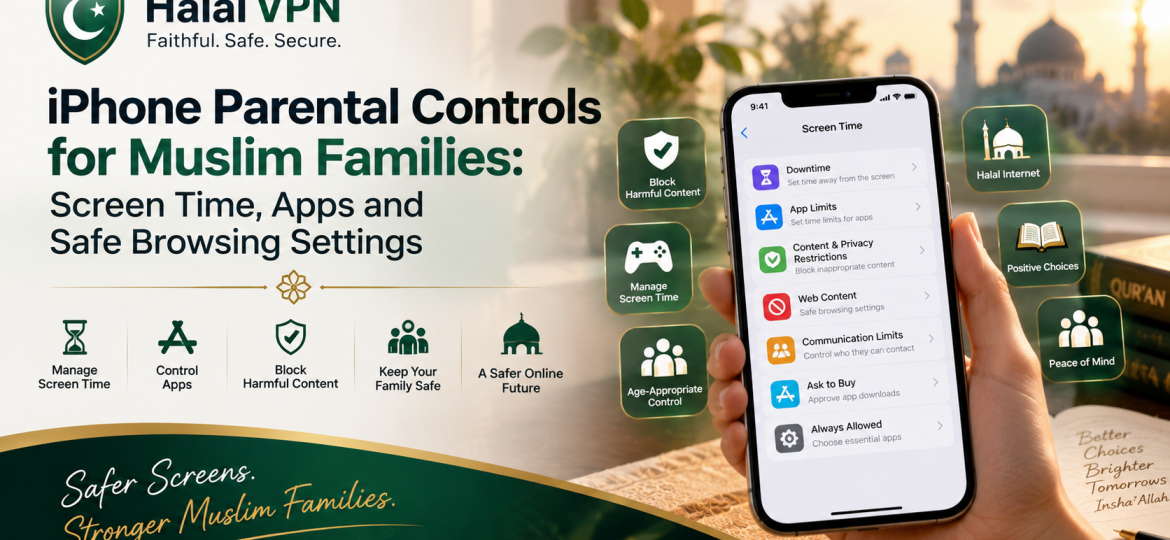
Giving a child an iPhone can make everyday life easier.
They can contact family, use school apps, learn Qur’an, watch educational videos, research homework, take photos and stay connected when they are away from home.
But the same device can also provide access to social media, explicit websites, gambling promotions, inappropriate apps, strangers, endless scrolling and content that does not fit your family’s values.
For Muslim parents, the goal should not be to make an iPhone unusable.
A better goal is:
Give children the benefits of technology while creating sensible boundaries around what they can access, when they can use it and how they behave online.
Apple provides strong parental-control tools through Family Sharing and Screen Time. Parents can manage app usage, downtime, purchases, age ratings, websites, communication and sensitive-content protections. On newer child accounts, Apple also turns on certain web and communication protections automatically, depending on age and region.
For Muslim families who want an additional faith-conscious layer, HalalVPN can complement Apple’s controls with website filtering, Muslim family profiles, selected content categories, website-risk warnings and VPN protection. HalalVPN’s family page specifically describes iOS support alongside AI-assisted filtering for categories such as adult content, gambling, intoxicants, scams and unsafe sites.
The important idea is layers.
Apple protects and manages the device.
HalalVPN adds another filtering and privacy layer.
Parents provide the judgment and tarbiyah that technology cannot replace.

Why iPhone Parental Controls Matter for Muslim Families
Parents often think online safety means:
“Block adult websites.”
That is important, but modern child safety is much broader.
A child can encounter unwanted content through:
- Safari;
- YouTube;
- social-media apps;
- games;
- advertisements;
- messaging apps;
- in-app browsers;
- shared links;
- AI chatbots;
- App Store downloads.
A strong iPhone setup therefore needs to address several separate questions:
What websites can my child visit?
Which apps can they install?
How long can they use entertainment apps?
Can they make purchases without permission?
What happens if someone sends them a sensitive image?
Can important safety settings be changed?
Apple’s Screen Time is designed to answer many of these questions.
For the broader Muslim-family strategy, internally link this article to Muslim Family & Parental Control Solutions. Muslim Family & Parental Control Solutions
Step 1: Add Your Child to Apple Family Sharing
Family Sharing is the best starting point if the parent and child both use Apple devices.
With Family Sharing, a parent or guardian can manage a child’s Screen Time settings remotely from their own iPhone, iPad or Mac. Apple also allows parents to approve purchases and downloads through Ask to Buy.
On the parent’s iPhone
Open:
Settings → Family
Then add your child or create a child Apple Account if needed.
Once the child’s account is part of your family group, you can manage many parental controls without repeatedly taking their phone.
Apple recommends keeping devices updated so Screen Time settings sync correctly across the family group.
Why the child’s own account matters
Avoid giving a young child unrestricted use of your personal Apple Account.
A child account lets you apply age-appropriate restrictions while keeping:
- purchases;
- contacts;
- activity;
- apps;
- parental controls
separate from the parent’s account.
Step 2: Set a Screen Time Passcode
This is one of the simplest but most important steps.
Screen Time controls are not very useful if the child can simply change them.
Set a Screen Time passcode that your child does not know.
Avoid using:
1234;- the child’s birthday;
- your usual phone PIN;
- an easily guessed family number.
The passcode protects the rules you establish around apps, websites and device use.
For younger children especially, settings should not be something they can casually disable when they become inconvenient.
Step 3: Turn On Screen Time
On your iPhone, go to:
Settings → Screen Time → [Child’s Name]
Screen Time lets you see which apps and websites your child uses most and gives you controls for:
- Downtime;
- App Limits;
- Always Allowed;
- Communication Limits;
- Communication Safety;
- Content & Privacy Restrictions.
This becomes your main Apple parental-control dashboard.
Step 4: Set Screen Time Around Real Family Life
Screen-time limits should not simply mean:
“Two hours because someone online said two hours.”
Every family is different.
Instead, identify the parts of the day when phones should not compete with important responsibilities.
For a Muslim family, those might include:
- salah;
- Qur’an study;
- school;
- homework;
- family meals;
- bedtime;
- family gatherings.
Apple’s Downtime lets you schedule periods when most apps and notifications are unavailable, while selected apps and phone functions can remain accessible.
Example family routine
A parent might set:
7:30 AM–3:00 PM: school-focused access
5:00 PM–6:00 PM: homework or study
9:00 PM onward: entertainment apps unavailable
The exact schedule is up to your household.
The point is to make the phone fit family life rather than allowing family life to revolve around the phone.
Step 5: Use App Limits Instead of Blocking Everything
Some apps do not need to be completely banned.
They may simply need boundaries.
Apple’s App Limits lets parents set daily time limits for individual apps or categories such as gaming and social networking.
For example:
Educational apps
No restrictive limit during study time.
Games
Perhaps a limited daily period.
Social media
A tighter limit depending on age.
Messaging
Keep available where needed for family communication.
This can work better than treating all screen time as equal.
Twenty minutes studying Arabic is not necessarily equivalent to twenty minutes endlessly scrolling short videos.
Step 6: Choose Which Apps Are Always Available
Inside Screen Time, Apple provides Always Allowed.
These are apps that can remain accessible even during Downtime.
Useful choices might include:
- Phone;
- Messages;
- Maps;
- school communication;
- Qur’an apps;
- transportation apps.
You may want entertainment apps to disappear during Downtime while keeping essential communication available.
That creates boundaries without making the phone unsafe or impractical.
Step 7: Turn On Content & Privacy Restrictions
This is where many of the strongest iPhone parental controls live.
Go to:
Settings → Screen Time → [Child] → Content & Privacy Restrictions
Turn the feature on.
From there, parents can manage apps, web content, purchases, privacy settings and other important restrictions.
This section deserves careful attention.
Step 8: Set Safe Browsing and Website Restrictions
For web access, Apple currently provides three main choices:
Unrestricted
No general web-content restriction.
Limit Adult Websites
Apple attempts to limit access to adult websites while allowing normal browsing.
Only Approved Websites
The child can access only websites that have been approved.
You can find these under:
Screen Time → Content & Privacy Restrictions → App Store, Media, Web & Games → Web Content
Which Option Is Best for Muslim Children?
It depends heavily on age.
Younger children
Only Approved Websites can provide the strongest control, especially when the child uses only a small number of school and learning websites.
However, this can become inconvenient for older children who need wider research access.
Older children
Limit Adult Websites may provide a more practical starting point while parents add specific blocked or approved websites as needed.
Apple lets parents manually add websites that should never be allowed.
The goal should be appropriate access, not maximum blocking regardless of the child’s needs.
Step 9: Add HalalVPN for Faith-Conscious Filtering
Apple’s adult-site filtering is useful.
But Muslim families may want to make decisions around categories that go beyond Apple’s general definition of adult content.
HalalVPN’s Muslim Family & Parental Control system describes filtering options for categories including:
- adult and explicit content;
- gambling and betting;
- intoxicant-related websites;
- disturbing or harmful material;
- scams and phishing;
- unsafe or malicious websites.
HalalVPN also provides family profiles and trusted website allowlists so parents can apply stronger settings to younger children and more appropriate access to teens.
HalalVPN’s site lists iOS support with filtering and Islamic tools.
How the two layers work together
Think of the setup like this:
Apple Screen Time
Controls the device, apps, purchases, screen time and basic web restrictions.
HalalVPN
Adds VPN protection plus faith-conscious website classification and family-selected filtering.
They are complementary.
You should not expect HalalVPN to replace Apple’s device controls, and you should not expect Apple’s standard web filters to make Islamic value judgments for your family.
For more detail about the filtering layer, internally link to Haram Content Blocking & Filtering for Muslim Families. Haram Content Blocking & Filtering for Muslim Families
Step 10: Keep Educational and Islamic Websites Accessible
One concern parents often have is overblocking.
Suppose a child searches:
“Why is gambling haram?”
A poorly designed filter might see the word “gambling” and restrict an otherwise legitimate Islamic educational resource.
Or a student may need to research alcohol addiction for school.
This is why allowlists matter.
HalalVPN describes Trusted Website Allow Lists that let parents approve educational, Islamic or family-trusted websites even while broader categories remain restricted.
That creates a much better balance:
Adult sites blocked.
Gambling sites blocked.
School websites allowed.
Trusted Islamic resources allowed.
For a deeper article on this exact issue, internally link to How to Block Haram Content on Your Child’s Phone Without Blocking Useful Websites.
Step 11: Control App Downloads
A carefully configured browser means much less if a child can freely install another browser, social platform or unfamiliar chat app.
Apple provides several ways to manage app installation.
Under Content & Privacy Restrictions, parents can restrict:
- app installations;
- app deletion;
- in-app purchases;
- age ratings.
You can also use Ask to Buy.
With Ask to Buy, the child sends a request before eligible app downloads or purchases, and the parent can approve or decline it from their own device.
This is particularly useful for younger children
Instead of constantly wondering:
“What did they install this week?”
you see the request before the app reaches the device.
Step 12: Use App Age Ratings
Apple lets parents restrict apps according to age ratings.
This is useful, but remember:
Apple age rating ≠ Islamic suitability rating.
An app can be technically age-appropriate while still containing:
- dating themes;
- gambling-style mechanics;
- inappropriate social interactions;
- entertainment your family does not want;
- unrestricted user-generated content.
So use age ratings as one signal.
Do not let them replace parental judgment.
Step 13: Check Alternative App Installation Where Available
Apple now supports alternative app marketplaces and web distribution in certain regions.
Where those features are available, Screen Time can restrict app marketplaces and app installation from the web. Apple specifically recommends reviewing these settings if parents want to prevent alternative app distribution.
If this feature exists on your child’s iPhone, check it.
A parent may carefully restrict App Store downloads while forgetting another installation route.
Step 14: Turn On Communication Safety
This is one of Apple’s most useful child-safety features.
Communication Safety can detect photos and videos that may contain nudity.
When such media is detected, Apple can blur it and show warnings and age-appropriate guidance before the child views or sends it.
Apple says this analysis happens on the device and Apple does not receive access to the photos or videos.
On supported child accounts with current software, Communication Safety is turned on by default for users under 18.
Where to check it
Go to:
Settings → Screen Time → [Child] → Communication Safety
Make sure the setting matches your family’s needs.
For Muslim parents concerned about accidental exposure to explicit imagery, this is an important protection to keep enabled.
Step 15: Use Communication Limits
Online safety is not only about content.
It is also about people.
Apple’s Communication Limits lets parents manage who a child can communicate with through supported services such as:
- Phone;
- FaceTime;
- Messages;
- iCloud contacts.
Parents can apply different rules during normal Screen Time and Downtime.
For younger children, you may want communication limited primarily to known contacts.
For teens, broader access may be appropriate depending on maturity.
The objective is not to prevent children from communicating.
It is to make access age appropriate.
Step 16: Don’t Assume Safari Restrictions Control Every App
This is an important limitation.
Your child’s internet activity may happen inside:
- Instagram;
- TikTok;
- YouTube;
- messaging apps;
- games;
- AI chatbots.
Some links open inside apps rather than directly in Safari.
That means web controls should not be treated as a complete solution for every piece of content displayed inside every platform.
This is why you also need:
- app controls;
- platform-specific safety settings;
- broader filtering;
- conversations with your child.
We explored this issue in more detail in Haram Content Beyond Websites: Can Filters Protect Kids Inside Apps, Videos and AI Chatbots?
Step 17: Configure YouTube Separately
YouTube deserves its own settings.
Do not assume that because Safari is filtered, every YouTube recommendation is also being evaluated according to your family’s standards.
Depending on your child’s age, consider:
- YouTube Kids;
- supervised YouTube;
- Restricted Mode;
- autoplay settings;
- watch-history controls.
For your HalalVPN cluster, internally link this section to YouTube Restrictions for Children: What Parents and Teens Need to Know.
That article can handle YouTube in detail while this guide stays focused on iPhone parental controls.
Step 18: Review Social Media Individually
If your teenager uses TikTok, Instagram or another social platform, configure its own parental and privacy controls.
Ask:
- Is the profile public?
- Who can message them?
- Who can comment?
- Are location permissions necessary?
- Is Restricted Mode or Family Pairing available?
- What kind of content dominates their feed?
An iPhone parental-control setup should reduce risk.
It cannot replace the safety controls inside every third-party platform.
Step 19: Check Privacy Permissions
Children often approve app permissions without thinking about them.
Review access to:
- location;
- camera;
- microphone;
- photos;
- contacts;
- Bluetooth.
Screen Time’s Content & Privacy Restrictions can prevent unauthorized changes to certain privacy settings.
Ask a simple question:
Does this app actually need this permission?
A calculator probably does not need your child’s location.
A basic game may not need their contacts.
Fewer unnecessary permissions generally mean less unnecessary data exposure.
Step 20: Set Different Rules for Different Ages
A six-year-old and a sixteen-year-old should not normally have identical controls.
Example for a younger child
Consider:
- Only Approved Websites or strong web restrictions;
- Ask to Buy;
- strict app-age ratings;
- no unrestricted social media;
- Communication Safety;
- shorter screen-time limits;
- stronger HalalVPN family filtering.
Example for a teen
Consider:
- Limit Adult Websites;
- selected HalalVPN categories;
- broader educational access;
- reasonable social-app access;
- privacy controls;
- less aggressive screen limits;
- more responsibility.
HalalVPN’s family page explicitly describes age-appropriate access and stronger protection for younger children while allowing older children suitable access to research and communication.
The settings should mature with the child.
A Practical Muslim Family iPhone Setup
Here is a useful layered configuration:
| Layer | Recommended role |
|---|---|
| Family Sharing | Manage the child’s account remotely |
| Screen Time | Device usage and parental controls |
| Downtime | Protect sleep, school and family routines |
| App Limits | Reduce excessive entertainment use |
| Ask to Buy | Review app downloads and purchases |
| Web Content | Limit adult sites or use approved websites |
| Communication Safety | Warn about sensitive images/videos |
| Communication Limits | Control who younger children contact |
| HalalVPN | Faith-conscious filtering and VPN protection |
| Trusted allowlist | Keep school and Islamic resources available |
| YouTube/social controls | Protect individual platforms |
| Parent conversations | Teach judgment and responsibility |
This is much stronger than looking for one “perfect” parental-control app.
A Sample Setup for an 8-Year-Old
A Muslim family might choose:
Screen Time
- bedtime Downtime;
- game limits;
- entertainment limits;
- school and communication apps always allowed.
App Store
- Ask to Buy enabled;
- age-appropriate app ratings;
- in-app purchases restricted.
Web
- Only Approved Websites or strong adult-site filtering.
Communication
- Communication Safety enabled;
- contact limits.
HalalVPN
- child profile;
- adult-content blocking;
- gambling restriction;
- intoxicant-related filtering;
- phishing/scam protection;
- trusted school and Islamic websites allowed.
This gives the child useful access without handing them the entire internet at once.
A Sample Setup for a 15-Year-Old
For a teenager, you might choose:
Screen Time
Moderate App Limits instead of strict total-device controls.
Web
Limit Adult Websites.
HalalVPN
Keep clearly inappropriate categories restricted while allowing broader school and research access.
Apps
Use Ask to Buy or app exception controls where appropriate.
Social media
Review privacy and safety settings together.
Family approach
Explain why the restrictions exist.
Allow increased independence when responsibility improves.
That final point matters.
Parental controls should not remain frozen at the child’s youngest age.
What Muslim Parents Should Avoid
Don’t Block Everything
Overblocking can make legitimate study and Islamic learning unnecessarily difficult.
Use approved websites and exceptions instead.
Don’t Depend Only on Screen Time
Screen Time manages many device functions but does not replace faith-conscious filtering or parenting.
Don’t Depend Only on HalalVPN
HalalVPN does not replace Apple’s app, purchase and communication controls.
Don’t Secretly Monitor Everything
Safety does not automatically require reading every private conversation.
Use age-appropriate supervision.
Don’t Configure the Phone Once and Forget It
Apps change.
Children mature.
Platforms introduce new features.
Review the setup periodically.
The Bigger Goal: Digital Tarbiyah
Muslim parenting is not only about stopping children from reaching certain pages.
Eventually, children become adults.
They receive their own passwords.
They purchase their own devices.
They use school, university and workplace networks.
No parental-control system can follow them forever.
That means the long-term goal should be:
technical boundaries + Islamic understanding + self-control.
A filter can block pornography.
Tarbiyah helps the child understand modesty.
A parental control can block a gambling app.
Tarbiyah helps the teenager understand why gambling is harmful.
Downtime can turn the phone off at night.
Good habits eventually teach the teenager to put it down without being forced.
HalalVPN’s family page similarly frames filtering as support for tarbiyah, balance, honesty, self-control and responsible technology use rather than simply blocking websites.
That is the more meaningful goal.
A Monthly iPhone Safety Check
Once a month, spend around ten minutes reviewing the phone.
Check:
- Are Screen Time settings still active?
- Have any new apps been installed?
- Are App Limits still realistic?
- Is Ask to Buy working as intended?
- Are web restrictions still appropriate?
- Is Communication Safety enabled?
- Are HalalVPN filtering categories still suitable?
- Are useful websites being incorrectly blocked?
- Do social-media privacy settings need attention?
- Has your child encountered anything uncomfortable online?
That final question may be more valuable than all the others.
Frequently Asked Questions
How do I set parental controls on my child’s iPhone?
Use Family Sharing and Screen Time. Apple lets parents manage Downtime, App Limits, purchases, age ratings, web content, communication and privacy restrictions from the parent’s device.
How do I block adult websites on my child’s iPhone?
Go to Screen Time → Child → Content & Privacy Restrictions → App Store, Media, Web & Games → Web Content and choose Limit Adult Websites or Only Approved Websites.
Can I prevent my child from downloading apps?
Yes. Screen Time can restrict app installations, and Family Sharing’s Ask to Buy lets parents approve eligible app downloads and purchases.
What is Communication Safety on iPhone?
Communication Safety can detect potentially nude photos or videos being received or sent by a child, blur them and provide warnings and safety guidance. Apple says the analysis happens on the device.
Can HalalVPN work on iPhone?
HalalVPN’s family-control page lists iOS support and describes filtering, family profiles, VPN protection and Islamic digital tools.
What does HalalVPN add to Apple’s parental controls?
Apple mainly manages the device, apps, purchases, time and general content restrictions. HalalVPN adds faith-conscious website classification and parent-selected categories such as adult content, gambling, intoxicants and unsafe websites, according to its current product information.
Should I use Only Approved Websites?
It can work well for younger children who need only a limited number of online resources. Older children doing school research may need broader access, making Limit Adult Websites plus custom restrictions more practical.
Can parental controls guarantee my child never sees inappropriate content?
No single tool should be treated as a guarantee. Children use multiple apps and platforms, and not every piece of third-party content is governed by the same filtering system. Layered protection is more realistic.
Final Thoughts: Make the iPhone Useful, Not Unrestricted
An iPhone can be a valuable tool for a Muslim child.
It can connect them with family.
Help with homework.
Teach languages.
Provide access to Qur’an and Islamic learning.
Support creativity.
Help them navigate everyday life.
The goal is not to remove those benefits.
It is to build boundaries around them.
Start with Family Sharing.
Turn on Screen Time.
Protect the settings.
Use Downtime and App Limits intentionally.
Enable web-content restrictions.
Control app downloads.
Keep Communication Safety active where appropriate.
Add HalalVPN’s faith-conscious filtering as another protection layer.
Then review the setup as your child grows.
Most importantly, explain what you are doing.
Children should gradually understand that parental controls are not simply:
“My parents don’t trust me.”
The healthier message is:
“We are helping you learn to use powerful technology responsibly until you are ready to manage those boundaries yourself.”
A good iPhone setup can protect a child today.
Good digital tarbiyah prepares them for the day when no parental-control password is needed.
