You download a game for your child.
The game itself looks harmless.
It has colourful characters, simple puzzles and a child-friendly age rating.
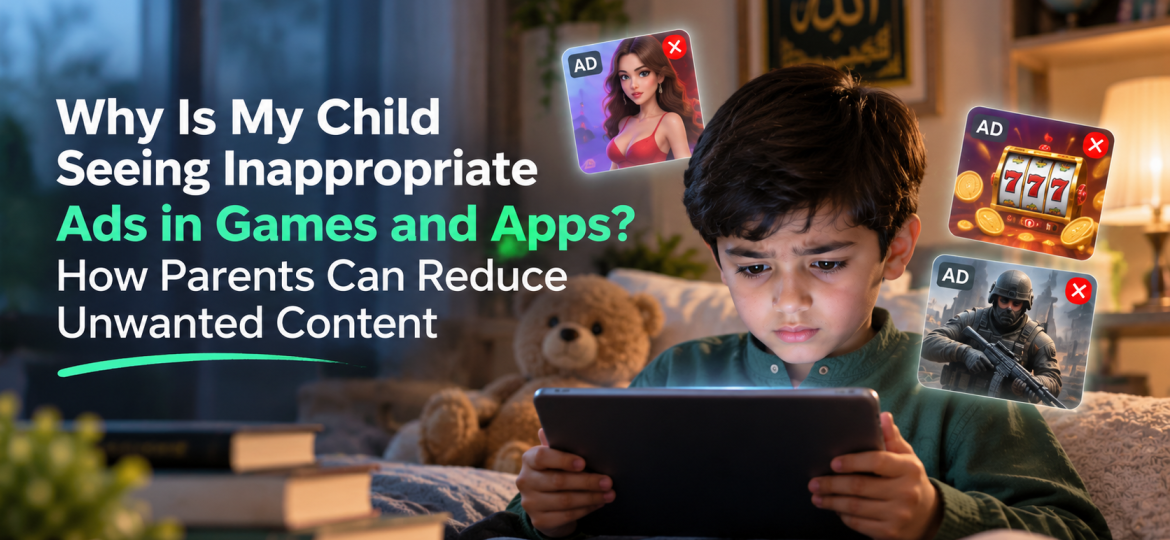
Then an ad appears.
Maybe it promotes a dating app.
Maybe it shows violent gameplay.
Maybe it includes gambling-style content, suggestive imagery, alcohol or another app you would never have chosen for your child.
The obvious question is:
“If the game is for children, why is my child seeing this ad?”
The answer is that the app and the advertisements shown inside it are often controlled by different systems.
A game developer may use an advertising network to fill ad space. The network then decides which ads appear based on factors such as the app, the user’s general location, age signals, account settings, advertising policies and the ad provider being used.
Google says children using supervised accounts may still see ads, and children can also encounter ads from non-Google providers on third-party sites and apps. Google specifically warns that when children use non-Google services, they may see ads that are not family-friendly.
For Muslim families, this can be particularly frustrating.
You may carefully block pornography, gambling and other harmful websites, only for similar themes to appear inside an otherwise acceptable game.
The solution is not necessarily to remove every free app from your child’s device.
But parents should understand where these ads come from, what parental controls can realistically do and when the safest choice is simply to remove the app.
For your wider family-safety setup, internally link this article to Muslim Family & Parental Control Solutions and Haram Content Blocking & Filtering for Muslim Families. HalalVPN’s current family platform is designed to add website classification, faith-conscious content categories, phishing protection and family controls alongside your device’s own parental settings.

Why Do Free Games and Apps Show So Many Ads?
Many free apps need another way to make money.
Advertising is one of the most common.
A developer can offer the app at no upfront cost and earn revenue when users:
- see advertisements;
- watch rewarded videos;
- click ads;
- install another app;
- make in-app purchases.
This is why some apparently free children’s games contain more commercial content than parents expect.
The FTC specifically warns that children can encounter advertising while searching for games, downloading them and during gameplay itself. It also notes that many parental-control systems focus on content and time limits rather than directly controlling every ad shown inside games.
That distinction matters.
You may successfully limit your child to 30 minutes of gaming.
That does not automatically control every advertisement appearing during those 30 minutes.
Why Can an Inappropriate Ad Appear in a Child-Friendly Game?
There are several possible reasons.
1. The App Uses a Third-Party Advertising Network
The developer may not manually choose every individual advertisement.
Instead, an advertising platform supplies ads dynamically.
That creates a chain:
Game developer → ad network → advertiser → child’s screen
If any part of that system incorrectly identifies the user, app or audience, an inappropriate ad may appear.
This does not necessarily mean the entire game itself was designed to expose children to adult material.
But parents still have to deal with the result.
2. The App Is Not Actually Classified as Child-Directed
This is a common misunderstanding.
A game may look like it is for children without officially targeting children under platform policies.
Bright colours, cartoons and simple gameplay do not automatically mean:
“This app follows children’s advertising rules.”
Google Play places stricter advertising requirements on apps that target children. Apps serving ads to children must use approved advertising SDKs, avoid interest-based advertising and ensure ad content is appropriate for children. Google specifically lists mature advertising, gambling, alcohol, sexually suggestive content and inappropriate violence among categories that should not be shown to children in child-targeted apps.
The key phrase is:
apps that target children.
An app marketed toward a broad audience may be treated differently.
3. Your Child May Be Using an Adult or Unsupervised Account
Account age matters.
Google says it does not serve personalized ads to children under the applicable age when it recognizes that they are signed into a supervised Family Link account.
But if a child:
- uses a parent’s account;
- uses an incorrectly configured birth date;
- uses an unsupervised account;
- uses a service where the age is unknown;
the platform may not apply the same protections.
This is one reason children should have their own correctly configured accounts.
On Android, Family Link can be used to supervise the child’s Google Account and manage apps and other controls.
4. Non-Google Ads May Follow Different Rules
Even with a properly supervised Google Account, advertisements inside third-party apps may come from other advertising companies.
Google explicitly says its child-account advertising policies apply to ads served by Google and not necessarily to other advertising providers.
This helps explain a common parent experience:
Google Search looks appropriately filtered, but an unrelated game still shows something uncomfortable.
They are separate advertising environments.
5. Content Ratings Do Not Guarantee Perfect Advertising
Parents often assume:
“The game is rated for my child’s age, therefore every advertisement inside it will also match that age.”
That is the goal of platform policies, but real-world systems are not perfect.
Google’s parent guide advises parents to periodically check the advertisements shown inside children’s apps because ad serving can change over time. It specifically says parents should report ads that do not match the app’s intended age group.
So do not judge an app only on the day you install it.
The ads your child sees next month may not be identical to those shown today.
6. Your Child May Have Clicked Into Another Advertising Environment
An ad can lead away from the original app.
A child taps a colourful button.
Suddenly they are looking at:
- another game’s store page;
- an external website;
- a video;
- another app;
- an in-app browser.
At that point, the original game’s age rating tells you very little about what the child is seeing.
This is one reason website and device filtering remain useful even when the main concern starts inside an app.
For a deeper explanation of this problem, internally link to Haram Content Beyond Websites: Can Filters Protect Kids Inside Apps, Videos and AI Chatbots?.
Are Children’s Ads Supposed to Be Safer?
Yes, when platforms correctly recognize that the service or account belongs to a child and the app falls under children’s policies.
For example, Google Play’s Families policies require apps targeting children to use approved ad systems and prohibit child-targeted ads involving categories such as:
- gambling;
- controlled or harmful substances;
- sexual or suggestive material;
- dating;
- inappropriate violent content.
Google also says personalized advertising is disabled for supervised child accounts under the applicable age.
But these protections should not be understood as a guarantee that a child will never see an unwanted advertisement.
Google itself says its filtering is not perfect.
That is why parents still need their own safety layers.
Why This Matters More for Muslim Families
A platform may define an advertisement as suitable for children while a Muslim family may still consider it inappropriate.
For example, an ad may not violate an app store’s general child-safety policy but may still promote:
- immodest entertainment;
- gambling-style mechanics;
- dating themes;
- music or imagery your family does not want;
- products that conflict with family values.
That is an important distinction.
Platform-approved does not automatically mean family-approved.
A general advertising system asks:
“Does this comply with our policy?”
A Muslim parent may ask:
“Does this fit the environment we want for our child?”
Those are different standards.
That is why a faith-conscious family safety strategy may include HalalVPN’s broader Haram Content Blocking & Filtering layer in addition to device parental controls.
What Can Parents Actually Do?
You cannot manually control every advertisement generated by every app.
But you can reduce exposure significantly.
Step 1: Make Sure Your Child Uses a Child Account
This is the foundation.
Android
Set up the child’s Google Account through Family Link.
Google says supervised child accounts do not receive personalized Google ads before the applicable age, while Family Link also gives parents controls over apps, purchases and other settings.
Do not let a younger child simply use your unrestricted Google Account.
A child’s device should look like a child’s device to the services they are using.
Step 2: Review the App Before Installing It
Do not rely only on the app icon.
Before downloading a game, check:
- age rating;
- developer;
- reviews;
- whether it contains ads;
- whether it contains in-app purchases;
- whether parents complain about inappropriate ads.
The FTC recommends reading ratings and reviews and, where helpful, watching gameplay videos before installing a game for children.
A particularly useful search is:
“[Game name] inappropriate ads”
You may discover an issue before the app ever reaches your child’s phone.
Step 3: Prefer Ad-Free Apps When Practical
Sometimes the simplest solution is the best.
If two educational games provide similar value and one is ad-free, the ad-free option reduces an entire category of risk.
The FTC specifically recommends looking for games labeled ad-free or selecting games with fewer ads where possible.
A paid app is not automatically better.
But sometimes paying a small one-time cost is preferable to giving an advertising network continuous access to your child’s attention.
Step 4: Consider the Paid Ad-Free Version of a Trusted Game
Some apps provide a legitimate option such as:
Remove Ads
or
Premium Version
If:
- your child uses the app often;
- you trust the developer;
- the paid version genuinely removes third-party advertising;
this can be a practical option.
Check the description carefully.
Some apps use phrases such as “ad-free” while continuing to promote in-app purchases or their own products.
The FTC has warned that some games described as ad-free may still expose children to commercial prompts or purchases.
Step 5: Use Family Link to Block Problematic Android Apps
If a game repeatedly displays inappropriate material, do not spend endless hours trying to repair the game.
Remove it.
Google Family Link lets parents block apps on supervised Android devices.
That may sound obvious, but parents sometimes continue using a problematic app because:
“My child really likes it.”
An app is optional.
Your family’s boundaries are more important.
You can usually find another game.
For a complete Android setup, internally link to How to Set Up Parental Controls on Android for Muslim Children.
Step 6: Use Apple’s Screen Time on iPhone and iPad
On Apple devices, Screen Time provides another layer of control.
Parents can manage:
- apps;
- app downloads;
- purchases;
- website access;
- age ratings;
- privacy settings.
Screen Time cannot guarantee that every third-party advertisement will match your family’s values.
But it can help you control:
which apps are present in the first place.
That is often more effective than trying to filter advertisements after they appear.
For the complete Apple setup, internally link to iPhone Parental Controls for Muslim Families.
Step 7: Reduce Personalized Advertising Where Possible
Personalized advertising uses available information to try to show ads considered relevant to the user.
For younger supervised Google users, Google says personalized advertising is already disabled before the applicable age.
On Apple devices, users can turn off Apple’s Personalized Ads setting, although Apple notes that doing so may not reduce the total number of ads; it mainly limits personalization for Apple-delivered advertising.
That distinction is worth remembering:
Turning off personalized ads does not mean turning off ads.
It means reducing one way they are selected.
Step 8: Check App Permissions
Some apps ask for more information than they genuinely need.
Review access to:
- location;
- contacts;
- microphone;
- photos.
An app’s permissions do not directly determine every ad it shows, but minimizing unnecessary data access is still good child-privacy practice.
Both Android parental controls and Apple’s Content & Privacy Restrictions can help families manage aspects of app access and privacy.
Ask:
Why does this children’s game need this information?
If there is no obvious reason, reconsider the permission.
Step 9: Report Inappropriate Ads
Do not assume reporting is pointless.
Google explicitly provides reporting routes for ads that are inappropriate for children and says such reports may be reviewed.
Take a screenshot if appropriate.
Note:
- which game showed the ad;
- what the ad promoted;
- when it appeared.
Then use the app, ad network or platform reporting controls.
If a children’s app repeatedly violates appropriate advertising standards, also consider reporting the app itself.
Step 10: Test the Game Yourself
This is one of the most effective steps.
Play the game for ten minutes.
Watch what happens between levels.
Check:
- banner ads;
- rewarded videos;
- pop-ups;
- store links;
- external redirects.
The FTC specifically recommends that parents either play children’s games themselves or watch their child play so they can understand how advertising appears.
You may discover immediately that the problem is not hidden at all.
You simply had not seen the game in use.
Step 11: Teach Children That Ads Are Trying to Influence Them
Technology alone cannot solve this.
Young children may not always recognize the difference between gameplay and advertising.
The FTC notes that younger children can have difficulty distinguishing advertising from other content.
Teach simple rules such as:
“If something suddenly says Download, Buy or Get, stop and ask me.”
“Do not click an ad because it promises free coins.”
“An advertisement is trying to make you want something.”
This turns an irritating problem into media-literacy education.
Step 12: Turn Off In-App Purchases or Require Approval
Some advertising is designed specifically to encourage spending.
A game may advertise:
- coins;
- skins;
- extra lives;
- subscriptions;
- upgrades.
The FTC recommends using parental controls to disable in-app purchases or require passwords/approval.
On Android, Family Link can manage Google Play purchases, although Google notes that approval settings apply to purchases using Google Play’s billing system.
On Apple devices, Screen Time can restrict App Store purchases and related settings.
Children should never have to understand payment systems alone.
Can HalalVPN Block Ads Inside Games?
This needs a careful answer.
HalalVPN can help with the broader digital environment, but it should not be presented as a universal in-app advertising blocker.
Its family platform currently focuses on:
- website classification;
- adult-content protection;
- gambling-site blocking;
- scam and phishing detection;
- malware and unsafe website warnings;
- trusted website allowlists.
That can be especially useful when an advertisement sends a child to:
- an explicit website;
- gambling page;
- phishing page;
- fraudulent link;
- another unsafe domain.
But an advertisement rendered entirely inside a third-party app may not behave like an ordinary website request that a content filter can classify.
So the responsible explanation is:
HalalVPN can add another protection layer around harmful websites and links, but parents should still use app-store controls, child accounts and individual app settings to manage inappropriate in-app advertising.
That is more credible than promising something the technology cannot guarantee.
What If the Ad Is Gambling-Related?
This is particularly relevant for Muslim households.
Gambling-style advertising can appear around:
- sports games;
- free-to-play games;
- casino-style mechanics;
- prize promotions.
Google’s Families policy specifically prohibits gambling advertising from being shown to children in child-targeted apps.
If you see such an ad inside an app clearly intended for children:
- take note of the app;
- report the advertisement;
- report the app where appropriate;
- stop your child using it until you understand what happened.
If the game is designed for a broad or older audience, consider whether the game itself is appropriate for your child.
What If the Ad Is Sexual or Dating-Related?
Google’s child-app policy similarly identifies sexually suggestive content and dating advertising as inappropriate for ads served to children.
Do not blame the child for seeing an advertisement they did not choose.
Instead:
- close it;
- document/report it;
- check the app’s age rating;
- inspect the account settings;
- decide whether to remove the app.
This is an important distinction.
Exposure is not the same as intention.
That principle is covered more deeply in Your Child Never Searched for Haram Content—So Why Did It Still Appear?.
Should Parents Ban Every App With Advertising?
Probably not.
That may be unrealistic.
Instead, classify apps into three groups.
Group 1: Trusted and ad-free
Best option.
Keep them.
Group 2: Useful with manageable ads
Review them periodically.
Use parental controls.
Teach children not to click ads.
Group 3: Repeatedly inappropriate or manipulative
Remove them.
If an app repeatedly creates problems, it has failed your family’s test.
You do not owe the app continued access to your child’s attention.
A Better Question Than “How Do I Block Every Ad?”
Parents often search:
“How can I block all inappropriate ads?”
But a more practical question is:
“How can I reduce the number of unsafe advertising environments my child enters?”
That leads to better actions:
- choose better apps;
- use supervised accounts;
- reduce unnecessary apps;
- disable unwanted purchases;
- review privacy settings;
- report violations;
- remove consistently problematic games;
- add broader website protection.
This approach is much more reliable than searching for one universal ad-block button.
A 10-Minute App and Game Ad Safety Audit
Once a month, check:
Accounts
- Is the child using their own supervised account?
- Is their correct age configured?
Apps
- Which new games were installed?
- Do they contain ads?
- Are any apps intended for older audiences?
Advertising
- What types of ads are appearing?
- Do they promote gambling, dating, violence or inappropriate products?
Purchases
- Are in-app purchases restricted?
- Does the child need approval?
Permissions
- Does each game have unnecessary location, microphone or contact access?
HalalVPN
- Are family filtering and unsafe-site protections configured?
- Do links from ads lead to blocked or suspicious sites?
Conversation
Ask:
“Has any game shown you an ad that made you uncomfortable or confused?”
That question may tell you more than the settings screen.
Frequently Asked Questions
Why does my child see inappropriate ads in kids’ games?
Ads may be supplied by third-party advertising networks rather than selected directly by the game developer. Problems can also occur if the app is not actually classified as child-targeted, the account is not properly supervised or the ad comes from a provider outside the platform’s child-focused advertising system.
Does Family Link stop inappropriate ads?
Family Link helps supervise a child’s Google Account, apps, purchases and other settings. Google also disables personalized Google ads for children under the applicable age, but children may still see advertisements, particularly on third-party services.
Can children’s apps show gambling ads?
Apps targeting children on Google Play are not supposed to serve gambling ads to children under Google’s Families policies. If such advertising appears, parents should report it.
Can I completely turn off ads on Android?
There is no single Android setting that removes all advertising from every third-party app. Choosing ad-free apps, buying legitimate ad-free versions, blocking problematic apps and using appropriate privacy settings can reduce exposure.
Does turning off personalized ads stop ads?
No. It generally changes how ads are selected rather than removing them entirely. Apple explicitly notes this for its own personalized advertising controls.
Can HalalVPN stop inappropriate in-app ads?
HalalVPN can help protect against harmful websites, gambling pages, phishing links and other unsafe domains when its relevant filters are enabled. It should not be treated as a guarantee that every advertisement rendered inside every third-party app will be filtered.
Should I delete a game that keeps showing inappropriate ads?
If an app repeatedly shows material you consider unsuitable and the problem cannot be controlled reliably, removing the app is a reasonable option. There are usually alternative games available.
Final Thoughts: Sometimes the Problem Isn’t the Game
Parents often carefully select the game.
Then an advertisement becomes the unexpected doorway.
That is why modern child internet safety cannot focus only on:
What did my child download?
You also need to consider:
What is being delivered inside it?
The strongest strategy is not complicated.
Give children correctly configured supervised accounts.
Choose apps carefully.
Prefer ad-free options where practical.
Use Family Link or Screen Time.
Control purchases.
Report inappropriate ads.
Remove apps that repeatedly fail your family’s standards.
Add HalalVPN as another layer to help protect against harmful websites, gambling pages, phishing and unsafe links.
And teach children that they never need to click an ad simply because it flashes, promises a reward or says “FREE.”
For Muslim families, the objective is not an internet without any advertising.
It is a digital environment where children can learn and play without commercial systems constantly pulling them toward content their parents never chose.
Choose the app carefully. Control the device wisely. Filter the wider internet. And teach the child what no filter can teach: judgment.